
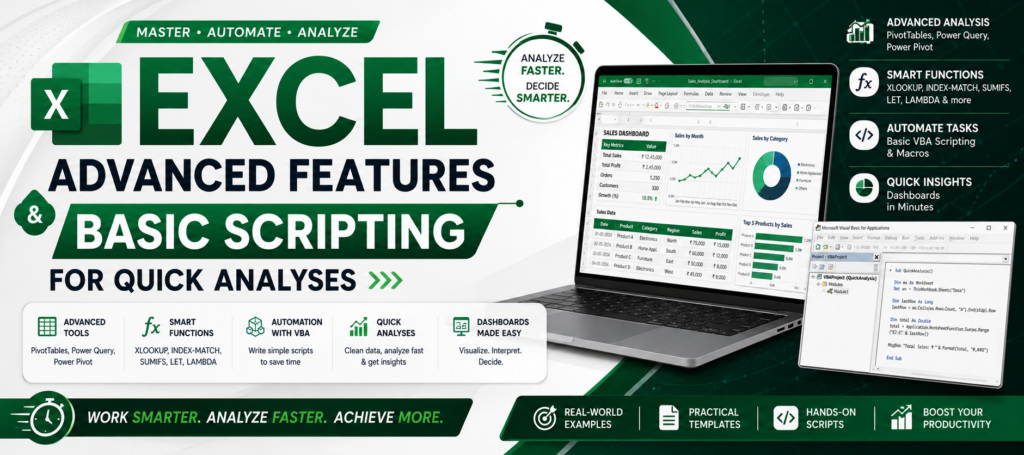
To perform quick, advanced data analyses, combine core features like Power Query, PivotTables, and dynamic formulas with VBA macros or Office Scripts. Automating repetitive tasks and complex lookups dramatically speeds up data preparation and business insights.
1. Advanced Analytical Features
Instead of basic VLOOKUP or SUM, leverage these heavy-hitting tools for rapid data analysis:
- INDEX & MATCH / XLOOKUP: Replace error-prone, static column references with dynamic lookups that handle data movements easily.
- Power Query: Go to Data > Get Data to build repeatable ETL (Extract, Transform, Load) pipelines. Use it to merge disparate files, clean dirty data, unpivot columns, and remove duplicates without coding.
- PivotTables: Drag and drop data fields to quickly aggregate millions of rows, calculate moving averages, or view month-over-month percent changes.
- Data Models & Power Pivot: Link multiple database tables directly into Excel, build relationships, and use DAX (Data Analysis Expressions) to calculate highly complex measures across large datasets.
2. Basic Scripting for Rapid Workflow
When quick analyses turn into repeatable tasks, bypass manual clicking with these scripting tools:
Office Scripts (Excel for the Web & Desktop)
Office Scripts (using TypeScript) are the modern replacement for VBA, making automation much easier to write, read, and maintain.
- Use Cases: Automate pulling API data, formatting daily reports, or clearing out temporary datasets.
- How to start: Go to the Automate tab and click Record Actions to generate code automatically, which you can then edit.
VBA (Visual Basic for Applications)
VBA is the legacy but powerful tool for automating deep Excel workflows.
- Use Cases: Looping through multiple sheets to standardize formats, auto-generating complex charts, or executing bulk Goal Seek operations.
- How to start: Press
Alt + F11to open the VBA editor, insert a Module, and writeSub [Name]to begin executing commands using Excel objects.
For a comprehensive guide covering formulas from beginner to advanced levels, check out this Excel Proficiency Guide.
3. References